If you are building a family desktop, upgrading an older laptop, or putting together a first gaming PC, the ssd vs hdd question comes up quickly. The short answer is simple: an SSD is the better primary drive for nearly every modern computer, while an HDD still makes sense when you need a lot of inexpensive storage. The useful answer depends on what you do, how much space you need, and whether you care more about speed today or capacity per dollar over several years.
I have replaced plenty of slow hard drives in Dell office machines, and the pattern is predictable. The processor is still capable, the memory is adequate, and Windows feels broken because the mechanical drive spends its day searching for small files. Replacing that drive with an SSD often makes the computer feel new without changing the CPU or adding more RAM.
How an SSD and HDD actually work
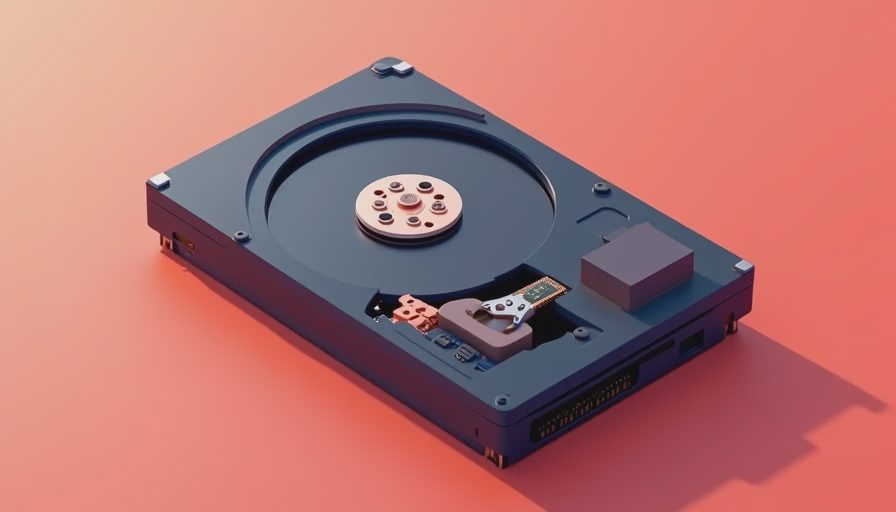
An SSD stores data on flash memory chips, with no moving parts. When you open an application, the drive retrieves electronic data almost immediately. An HDD uses spinning magnetic platters and a moving read/write arm. That arm has to physically move to the right location before the computer can read a file. It is clever engineering, but it is still a mechanical process.
That difference explains most of the ssd vs hdd debate. An SSD usually delivers faster startup times, quicker application launches, and a more responsive desktop. A computer with an SSD can reach the Windows sign-in screen in roughly 10 to 25 seconds, depending on the system and software. An HDD-based system can take much longer, especially after years of updates and accumulated programs.
The improvement is not limited to booting. File searches, browser launches, photo management, and updates all involve many small read operations. SSDs handle those tasks well. HDDs are better at storing large amounts of data cheaply, especially when the files are mostly photos, videos, archived projects, or backups that you do not open every day.
Speed, noise, and everyday reliability
For a home office computer, the most noticeable advantage in ssd vs hdd is responsiveness. Clicking Excel, opening a browser with several tabs, or switching between a tax document and a video call feels less sluggish. An SSD is also silent. There is no platter spin-up, clicking head, or vibration under the desk.
An HDD is not automatically unreliable. I still use hard drives in storage servers and backup systems when the price per terabyte matters. The concern is that moving parts are more vulnerable to physical shock and mechanical wear. A desktop HDD sitting safely in a case is in a better environment than a portable drive bouncing around in a backpack, but neither type should be treated as a backup by itself.
This is where people often get the wrong idea. SSDs are not indestructible, and they can fail without much warning. An HDD may sometimes show warning signs such as unusual noise or slowing performance, but you should never wait for symptoms. Keep important family photos and documents in at least two separate places, such as the computer and an external drive or reputable cloud service.
Capacity and cost: where HDDs still win
A 1TB SSD is a sensible starting point for a general-purpose PC. It gives Windows, applications, school files, and a modest game library room to breathe. A 500GB SSD can work for a basic office machine, but it fills faster than many buyers expect once Windows, photos, downloads, and a few large games are installed.
Hard drives usually offer more capacity for the money. A 4TB or 8TB HDD can hold years of photos, home videos, music, and installers at a lower cost per terabyte than an SSD. For example, a practical family setup might use a 1TB NVMe SSD for Windows and applications, plus a 4TB SATA HDD for media and long-term storage. That arrangement gives you the speed you feel every day without paying SSD prices for files you rarely access.
The price gap is not as dramatic as it once was, so do not automatically buy a tiny SSD just to save a few dollars. Spending an extra $25 to $50 for a 1TB model over a cramped 500GB drive can prevent an annoying upgrade later. Brands such as Crucial, Samsung, Western Digital, Solidigm, and Kingston sell normal retail options, but model quality and warranty details still matter more than the logo on the label.
Which drive belongs in a gaming PC?
For gaming, ssd vs hdd is mostly a question of load times and usable space. An SSD can reduce the time spent waiting for a game to launch or a large level to load. It does not magically increase graphics quality or turn a weak graphics card into a fast one. Your GPU, processor, and memory still determine frame rates.
I would put the operating system and your most-played games on a 1TB or 2TB SSD. Use an HDD for older games, recordings, screenshots, and installers if you need the extra capacity. Modern game installations can consume 80GB or more, so a 500GB system drive becomes inconvenient quickly. Leave free space available rather than filling the drive to the last few gigabytes.
For a child’s first gaming PC, a 1TB NVMe SSD is usually the cleanest choice. It keeps the build simple, avoids extra cables, and provides a noticeable improvement every time the computer starts. If the budget is tight, buy a smaller SSD now and add a second drive later rather than building the entire system around an HDD.
SATA SSD or NVMe SSD?
This is a smaller decision than many shopping guides suggest. A 2.5-inch SATA SSD is dramatically faster than an HDD and works in many older desktops and laptops. An NVMe SSD connects through an M.2 slot on the motherboard and can deliver higher transfer speeds, especially for large file work.
For browsing, schoolwork, office applications, and most gaming, both types feel fast. NVMe is often the better choice in a new desktop because the installation is tidy and current prices are competitive. SATA makes sense when you are upgrading an older computer that lacks an M.2 slot. Before buying an M.2 drive, confirm that the motherboard supports the correct interface and size.
Do not pay twice as much for a high-end drive because a box advertises enormous sequential speeds. Copying one large video file is not the same as opening dozens of everyday applications. For a family PC, a reliable midrange SSD with a decent warranty is usually a smarter purchase than a premium model whose headline benchmark will never affect your routine.
My practical recommendation
When I answer the ssd vs hdd question for a normal home computer, I recommend an SSD as the primary drive every time. Choose 1TB for a basic desktop, 2TB for a gaming or creative machine, and add a large HDD when your photo, video, or backup collection demands it. That setup gives you fast startup, quiet operation, reasonable upgrade flexibility, and affordable bulk storage.
If you are replacing an old HDD, clone it only when the existing installation is healthy and clean. Otherwise, install Windows fresh on the SSD, reconnect the old drive for file access, and copy only what you actually need. Before opening the case, back up documents, browser passwords, and family photos. A drive upgrade is a good time to discover whether your backup plan works, not the time to discover that it never existed.
The best ssd vs hdd decision is not about winning a spec-sheet argument. It is about putting fast storage under the work you do every day and inexpensive storage under the files you simply want to keep. Build it once. Build it right.