
If you're building a family desktop, home office computer, or first gaming rig, an nvme ssd is one of the few upgrades you will notice every day. Windows starts faster, applications open with less waiting, and copying a folder of photos does not turn into a coffee break. The trick is choosing a dependable drive instead of paying extra for a benchmark number that has no practical effect on your household.
I learned this lesson during my Dell support years. A fast storage device is useful, but a reliable one is better. Your computer's drive holds tax documents, family photos, school projects, and the operating system itself. Build it once. Build it right.
What an nvme ssd actually does
An nvme ssd is a solid-state drive that connects through the computer's PCIe interface using the NVMe storage protocol. That sounds technical, but the useful translation is simple: it communicates with the processor more directly than an older SATA SSD, so it can move data quickly with very little delay.
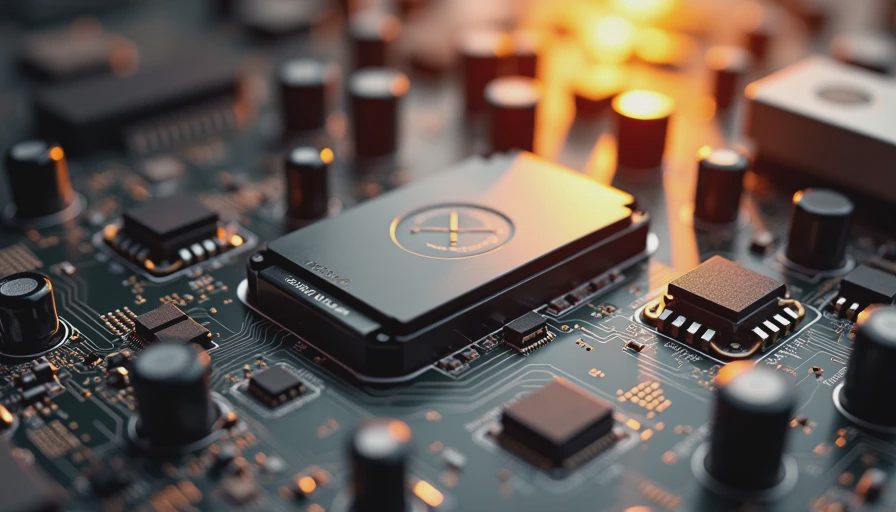
The physical drive is usually a slim circuit board that fits into an M.2 slot on the motherboard. There are no spinning platters, read heads, or motors. That makes it quiet, resistant to ordinary movement, and much quicker than a traditional hard drive. Compared with a SATA SSD, the improvement is real but less dramatic than the jump from a hard drive to any SSD.
For normal family use, you will feel the biggest gains during Windows startup, application launches, game loading, large file transfers, and photo or video work. You will not make a web browser load ten times faster simply because a product box claims ten times the sequential speed.
How much storage should you buy?
For a basic home office computer, a 500GB nvme ssd can work, especially if documents live in cloud storage. I usually recommend 1TB instead. The price difference is often modest, and that extra space gives Windows, applications, updates, photos, and a few games room to grow without constant cleanup.
A 1TB drive is the sensible choice for most families. A first gaming PC with games such as Baldur's Gate 3, Call of Duty, or Microsoft Flight Simulator can fill 500GB surprisingly quickly. A 2TB nvme ssd makes more sense when several people share the computer, the system stores a large photo library, or the owner plans to edit video.
Do not confuse advertised capacity with usable capacity. Windows formats the drive and reserves some space for system functions, so a 1TB model will show less than a full 1,000GB in File Explorer. Try to keep roughly 10 to 20 percent free. A nearly full drive can slow maintenance tasks and makes future updates harder.
TLC, QLC, and the part most shoppers miss
Storage manufacturers use different types of NAND flash memory. TLC stores three bits per cell and is the comfortable middle ground for most home computers. QLC stores four bits per cell, allowing higher capacity at a lower price, but sustained writing can be slower and endurance is generally lower.
For a homework machine, streaming PC, or ordinary gaming system, a good QLC drive can be perfectly adequate. If you regularly move hundreds of gigabytes, edit 4K video, run virtual machines, or use the computer for business production, I prefer a TLC nvme ssd with a respectable endurance rating.
Endurance is commonly shown as TBW, or terabytes written. It tells you how much data the manufacturer expects the drive to handle during its warranty period. You do not need an extreme enterprise rating for a home PC. A mainstream 1TB model rated around 600 TBW already represents far more writing than most families generate in normal use.
Gen3, Gen4, and heat management
PCIe Gen3 and Gen4 describe the connection speed between the drive and motherboard. Gen4 models can be considerably faster in specifications, but the benefit depends on the rest of the system and the workload. Opening Chrome, writing a school report, and launching most games will feel similar on a quality Gen3 or Gen4 drive.
If the motherboard supports PCIe Gen4, a midrange Gen4 nvme ssd is a reasonable long-term purchase. Do not pay double for a premium model just to win a loading-screen comparison. Put that money toward more memory, a better power supply, or a larger capacity drive if those parts solve a real problem.
Heat is more important than many buyers realize. Fast drives can throttle, meaning they temporarily reduce speed to protect themselves when they get too hot. Use the motherboard's M.2 heatsink when available, and install it with the protective film removed from the thermal pad. The drive should sit flat and be secured with the correct screw or latch.

Brands and models I would consider
I tend to start with established retail lines from Samsung, Western Digital, Crucial, Solidigm, and Kingston, then compare the exact model rather than buying by logo. Each company sells excellent drives and budget drives. The model's flash type, controller, warranty, firmware history, and price matter more than the badge on the label.
A Samsung 990 Pro is powerful storage for demanding work, but it is unnecessary for a basic family desktop. A WD Blue, Crucial P3 Plus, Solidigm P44 Pro, or Kingston KC3000 may fit very different budgets and workloads. Those examples are not interchangeable recommendations; they show why the use case comes first.
Before ordering, read the motherboard manual. Check whether the M.2 slot supports NVMe, which PCIe generation it uses, and whether installing the drive disables a SATA port. This is a five-minute check that can prevent a frustrating build-day surprise.
A dependable installation plan
Install the drive before mounting the motherboard in a cramped case. Ground yourself, hold the drive by its edges, slide it into the slot at a shallow angle, and press it down gently. Never force the connector. After securing it, enter the UEFI setup and confirm that the motherboard detects the storage.
During Windows installation, select the new drive and let the installer create the necessary partitions. After reaching the desktop, install motherboard chipset drivers, run Windows Update, and check the storage manufacturer's support page for firmware tools. Keep important files backed up to a separate device or reputable cloud service; an nvme ssd is not a backup system.
For a family computer, schedule a monthly backup of documents and photos, and test that a few files can actually be restored. That small habit protects you from accidental deletion, ransomware, and hardware failure far better than buying the most expensive drive on the shelf.
My practical recommendation
If you're building a home office or family PC, buy a reliable 1TB nvme ssd from a major manufacturer, preferably TLC when the price is reasonable. Choose 2TB for a shared gaming machine or a growing media library. Use the motherboard heatsink, leave free space, update firmware carefully, and maintain a separate backup.
I would rather see a sensible 1TB drive paired with 32GB of memory and a quality power supply than an overpriced flagship storage device inside an unbalanced build. The goal is not to win a benchmark chart. The goal is a computer that starts on Monday morning, opens the family files, and still does the job five years from now. Build it once. Build it right.