
Buying a first gaming PC for kids can feel like walking into a parts store where every box promises to be faster, cooler, and more important than the last one. I have spent years troubleshooting Dell OptiPlex desktops and PowerEdge servers, and the lesson carries over to family computers: reliability beats flashy specifications. Your child needs a machine that runs games, handles homework, stays quiet, and still works after the excitement of unboxing wears off.
For most families, that means setting a realistic budget of $700 to $1,100 for the tower, monitor, keyboard, and mouse. You do not need a $2,500 system for Minecraft, Roblox, Fortnite, Rocket League, or most popular PC games. You need balanced parts, a decent power supply, and enough room to upgrade later.
What a first gaming PC for kids actually needs
A first gaming PC for kids should start with the games your child will play, not with a brand name. Minecraft and Roblox are relatively easy to run, while Fortnite, Apex Legends, and newer open-world games ask more from the graphics card. Ask for a short list of five games, then build around the most demanding one.
For a sensible 2025-style starter system, I would look for a modern six-core processor, 16GB of memory, a 1TB solid-state drive, and a dedicated graphics card in the $200 to $350 range. A processor such as an AMD Ryzen 5 or Intel Core i5 is usually enough for schoolwork and gaming without turning the computer into a space heater. The specific generation matters less than buying a current model at a normal retail price.
The graphics card does the heavy lifting for game visuals. An entry-level NVIDIA GeForce RTX card or an AMD Radeon RX card can deliver a good 1080p experience when paired with the right processor. “1080p” simply means the common resolution used by affordable gaming monitors. Do not pay extra for 4K equipment unless you already know your child needs it; the monitor and graphics card costs rise quickly.
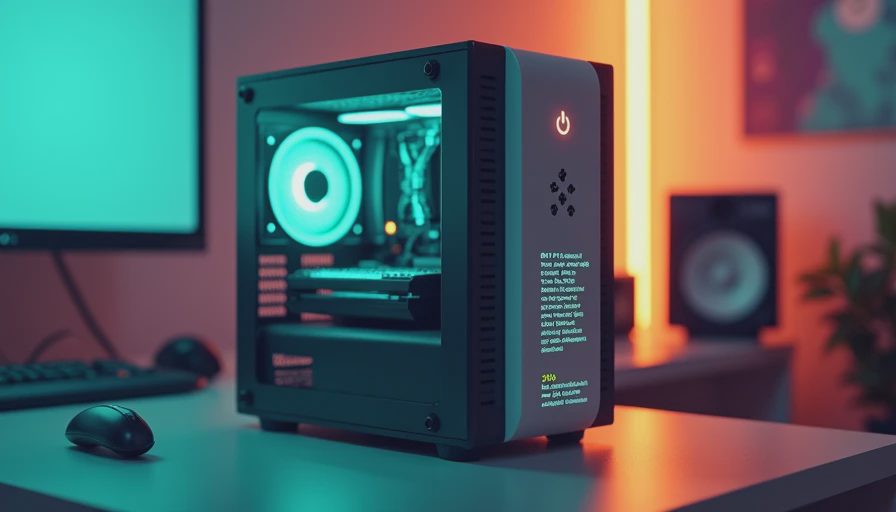
The parts I would choose for a reliable starter build
If you are building a first gaming PC for kids, I would spend money in this order: power supply quality, solid-state storage, enough memory, then graphics performance. That order is not exciting, but it prevents several common headaches.
Choose a reputable 550- to 650-watt power supply with an 80 Plus Bronze or better efficiency rating. Corsair, Seasonic, be quiet!, and Thermaltake all sell models that are commonly available at regular retailers. The wattage is not a performance score; it is the amount of electrical power the unit can safely provide. A cheap, oversized supply is not a bargain if it fails and damages other parts.
Use a 1TB NVMe solid-state drive instead of a small 256GB drive. Windows, school files, game launchers, and a few large games fill 256GB surprisingly fast. A WD Blue, Crucial, Samsung, or Solidigm drive is a practical choice. Sixteen gigabytes of RAM is the floor I recommend today. If the computer will also stream, record gameplay, or run creative software, 32GB becomes a worthwhile upgrade.
The case should have a mesh front or other clear path for airflow, two or three included fans, and room for future upgrades. RGB lighting is harmless, but it does not cool a computer or make games run better. I would rather see $40 spent on a better case fan than on glowing strips behind the motherboard.
Prebuilt or custom build?
A prebuilt first gaming PC for kids is often the right answer for a busy family. Lenovo Legion, HP Omen, Acer Nitro, and Dell gaming desktops frequently offer complete systems that are ready to use. A prebuilt usually includes Windows, tested components, and one support contact. That convenience can justify paying $100 to $250 more than the raw parts cost.
Read the specification carefully before buying. Some low-priced gaming desktops advertise a powerful graphics card but cut costs with 8GB of RAM, a small hard drive, or an unknown power supply. Those systems can still work, but upgrades arrive sooner. Look for the exact processor, graphics card, memory amount, storage type, and power supply information rather than trusting phrases such as “gaming ready.”
A custom build makes sense when you want to understand every part or involve your child in the process. Building together can teach basic electronics, patience, and troubleshooting. It also makes future upgrades less mysterious. However, leave an evening for assembly, Windows updates, driver installation, and testing. If that sounds like a chore rather than a project, buy the prebuilt and spend the saved time playing together.
A practical budget without the nonsense
For about $700, a tower-only system can handle esports games and lighter titles at 1080p. Around $900 buys a more comfortable setup with a stronger graphics card, 16GB of RAM, and a 1TB SSD. At $1,100 to $1,300 for the complete setup, you can include a 1080p 144Hz monitor, a basic mechanical keyboard, a reliable mouse, and a headset without choosing the cheapest item in every category.
Do not spend half the budget on a monitor while pairing it with an entry-level graphics card. A 24-inch 1080p monitor from Acer, ASUS, AOC, or Dell is a sensible starting point. Refresh rate matters for fast games, but a child will notice stable frame rates and a responsive mouse more than a premium display with a computer that struggles to use it.
Watch for sales from Best Buy, Micro Center, Amazon, and manufacturer stores, but compare the full specification. A $750 desktop that needs another $100 of RAM and a $70 storage upgrade is not cheaper than an $850 system that already includes both.
Setup details that prevent future arguments
The best first gaming PC for kids is easy to use and easy for an adult to maintain. Put it somewhere with open space around the intake and exhaust vents, not inside a closed cabinet or pressed against a wall. Dust the filters every few months, especially if you have pets. Heat and clogged airflow cause more ordinary computer trouble than most parents realize.
Create a standard Windows account for your child and keep the administrator password private. Turn on automatic updates, use a separate browser profile for schoolwork, and agree on game installation rules before the first download. Windows Family Safety can help manage screen time and app access, while each game may have its own parental controls. These tools work best when paired with a clear conversation rather than used as a secret surveillance system.
Install the motherboard and graphics drivers from the manufacturer or Windows Update, then test Wi-Fi, sound, sleep mode, and every USB port. Run a game for 30 minutes and listen for unusual rattling or fan surges. Save receipts, product serial numbers, and warranty information in one folder. That five-minute habit makes a future support call much easier.
My final buying advice
When someone asks me about a first gaming PC for kids, I start with the family’s games, budget, and tolerance for maintenance. A balanced $900 system with 16GB of memory, a 1TB SSD, a dependable power supply, and a midrange graphics card is usually a better long-term purchase than a $1,300 machine covered in lights and oversized marketing claims.
Buy enough performance for 1080p gaming today, but leave an upgrade path for tomorrow. Check the power supply, cooling, storage, and warranty before admiring the graphics card. If you choose a prebuilt, read every listed component. If you build it yourself, take your time with cable connections and motherboard installation.
The goal is not to win a benchmark contest. It is to give your child a computer that starts every afternoon, handles homework before gaming, and remains useful as interests change. That is the approach I use in my own garage builds: build it once, build it right.