If you are comparing prebuilt vs custom pc options for a home office, family desktop, or first gaming machine, you are probably trying to avoid two expensive mistakes: paying for hardware you do not need or assembling a computer that becomes a troubleshooting project. I spent eight years working on Dell OptiPlex and PowerEdge failures, and my advice is simple: start with how the computer will be used, then choose the buying method that gives you dependable parts and reasonable support.
A prebuilt computer is assembled, tested, and sold as a complete system. A custom PC can mean building it yourself from individual components, or ordering a system assembled to your specifications by a reputable shop. Those choices overlap more than people think. A well-designed prebuilt can be an excellent family computer, while a poorly planned custom build can be an expensive box of mismatched parts.
What you are really paying for
The first part of prebuilt vs custom pc is the price of convenience. With a prebuilt from Dell, HP, Lenovo, CyberPowerPC, or iBUYPOWER, someone has selected compatible parts, installed the operating system, tested basic functions, and packed the machine. That labor has value. Depending on the system, assembly and support can effectively add $100 to $300 compared with buying parts during sales.
A custom build gives you more control over the budget. You can put $700 into the processor, memory, and storage instead of paying for decorative lighting or a stronger graphics card than your family needs. A sensible home office build with 16GB of memory, a 1TB solid-state drive, and integrated graphics often lands around $600 to $900 in parts. A comfortable 1080p gaming system commonly reaches $900 to $1,400, depending on the graphics card and current retail pricing.
The catch is that the sticker price is not the entire cost. You also need a Windows license, tools if you lack them, time for assembly, and patience when a system refuses to boot because one memory module is not seated correctly. A local builder may charge $100 to $250 for assembly and testing, which can still be worthwhile for a reliable result.
Reliability comes from the parts nobody photographs
When I evaluate prebuilt vs custom pc decisions, I look past the processor name first. The power supply, cooling layout, motherboard quality, and storage warranty often determine whether the computer is pleasant to own three years from now.
Some mass-market desktops use proprietary power connectors, cramped cases, or power supplies sized only for the original configuration. That is not automatically bad. A basic family desktop that stays unchanged for five years can run perfectly well. It becomes a problem when you expect to install a larger graphics card later and discover that the power supply, case clearance, or motherboard connection prevents the upgrade.
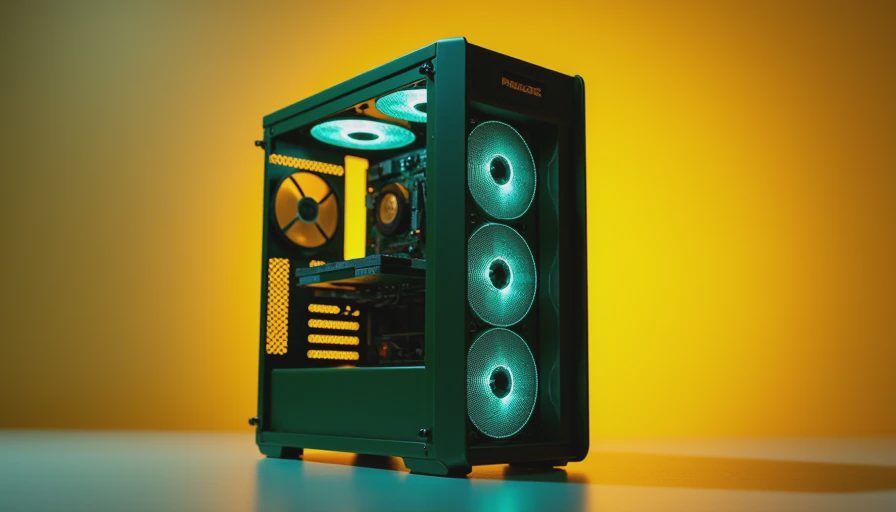
Custom builders can choose a standard ATX power supply from brands such as Corsair, be quiet!, Seasonic, or EVGA, along with a case that has room for additional storage and airflow. I would rather see a modest graphics card paired with a dependable 550-watt or 650-watt unit than a faster card connected to an anonymous power supply. The computer should have two intake fans, a rear exhaust fan, and a clear path for air. Fancy RGB lighting does not lower temperatures or improve reliability.
Support changes the ownership experience
A prebuilt usually gives you one company to contact when the system fails. That can be valuable for a parent who does not want to diagnose whether a blue screen comes from a driver, memory module, or failing drive. Dell and Lenovo business desktops typically offer straightforward service documentation, while consumer gaming brands often focus their support around the complete system and its original configuration.
With a self-built computer, each component has its own warranty. That can be better or worse. A failed solid-state drive might be replaced by the storage manufacturer, but you still have to identify the failure, remove the part, and wait for a replacement. For a first-time builder, that process can turn a small fault into a week of homework and interrupted work.
An assembled custom system from a trustworthy local shop offers a useful middle ground. You get selected parts and upgrade flexibility, plus a person who can test the machine before it reaches your desk. Ask whether labor is covered separately from component warranties, how long support lasts, and whether the builder documents the exact model numbers inside the machine.
Which choice fits common household needs?
For email, schoolwork, web browsing, QuickBooks, video calls, and photo organization, a prebuilt desktop is often the sensible choice. A $500 to $800 system from a mainstream manufacturer can be quiet, compact, and ready the day it arrives. If the computer will sit in a home office and nobody expects to add a graphics card, the restrictions inside the case may never matter.
If your kids want to play current games, pay closer attention. Many inexpensive gaming prebuilts advertise a powerful processor while using a weak graphics card, 8GB of memory, or a small 512GB drive. Those specifications can produce a frustrating experience after a few large games are installed. Look for 16GB of memory, a 1TB SSD, a standard power supply, and a graphics card appropriate for the monitor resolution. For most families, a reliable 1080p setup is a better value than chasing 4K performance.
A custom PC makes the most sense when you have specific needs: quiet operation, video editing, a large photo library, multiple monitors, or a future upgrade plan. You can choose a case with dust filters, a larger CPU cooler, and two storage drives without paying for parts that do not fit your routine. In prebuilt vs custom pc terms, this is where control begins to outweigh convenience.
A practical buying process
Before choosing, write down the programs and games the computer must run today, then add what you expect to use in three years. Set a complete budget that includes the monitor, keyboard, mouse, operating system, and a surge protector. A desktop advertised at $899 can become a $1,100 purchase once those items are added.
Next, inspect the exact specifications instead of relying on phrases such as “high performance.” Confirm the memory capacity, storage type, power supply wattage and brand, motherboard expansion options, and warranty terms. Search for the model number, not just the manufacturer name. Two systems with the same processor may have very different cooling, storage, and upgrade options.
If you build, test outside the case before final cable management. Install one memory module, connect the processor cooler, use the integrated graphics when available, and confirm that the system reaches its firmware screen. Then add the remaining parts one at a time. This procedure takes longer than throwing everything into the case, but it makes a failure much easier to locate.
My recommendation for a first family computer
The honest answer in prebuilt vs custom pc is that neither side wins every time. Buy a prebuilt when you need a dependable desktop quickly, want one warranty contact, and have ordinary office or school requirements. Choose a custom build when you care about specific parts, quiet cooling, meaningful upgrades, or getting the most performance from a fixed budget.
For families uncertain about assembling hardware, I usually recommend a carefully specified prebuilt or a custom system assembled by a reputable builder. Avoid the lowest-priced gaming tower if its power supply and upgrade path are hidden. Spend money on a good case, adequate memory, solid storage, and a power supply with a clear model number before spending on lighting or a premium processor.
I have replaced enough failed fans, bargain power supplies, and overheated office desktops to know that the cheapest purchase is not always the cheapest ownership experience. Pick the machine that matches your actual use, document what is inside it, and leave room for maintenance. Build it once. Build it right.