If you are building a family desktop, upgrading a home office computer, or putting together a first gaming PC, ram sticks are one of the easiest parts to get wrong. The good news is that you do not need to memorize every speed rating or motherboard specification. You need the right capacity, the right generation, and a matched kit that your system can actually use.
I have replaced plenty of memory during my years supporting Dell desktops and servers. The failure is not always a dead module. More often, someone installs an incompatible generation, mixes two unrelated kits, or buys too little memory for the work the computer needs to do. A few minutes of planning prevents hours of troubleshooting later.
Start With How the PC Will Be Used
If you are building a PC your kids will use for homework, web browsing, video calls, and light games, 16GB is a sensible starting point. Two 8GB ram sticks give the processor two memory channels to work with, and that configuration is affordable at normal retail prices. For a basic office computer, it is usually more than enough for several browser tabs, Microsoft 365, Zoom, and music playing together.
For a family computer expected to last five years, I prefer 32GB when the budget allows. Two 16GB ram sticks provide breathing room for photo organization, large spreadsheets, creative applications, and newer games. You do not need 64GB for a typical homework station, but it can make sense for video editing, virtual machines, software development, or heavy multitasking.
Capacity is not the same as speed. More memory lets you keep more programs open; faster memory can improve responsiveness in certain workloads. Capacity comes first. I would rather see a stable 32GB kit at a reasonable speed than an expensive 16GB kit covered in marketing language.

DDR4 and DDR5 Are Not Interchangeable
The first technical detail to check is memory generation. DDR4 and DDR5 are different standards, and their physical notches are positioned differently. A DDR4 module will not fit a DDR5 motherboard, and forcing it would be a very expensive mistake. Your motherboard model and processor platform determine which generation you need.
This is where many online shopping errors begin. A listing may show a familiar brand and an attractive price, but the title can hide whether the kit is DDR4 or DDR5. Before buying ram sticks, open the motherboard manufacturer page and confirm the memory type. PCPartPicker can also flag many compatibility issues, but I still verify the board manual when building a system for a client.
Do not assume that newer automatically means better. DDR5 is the current choice for many new builds, while DDR4 remains a practical option for budget systems and upgrades. If you already own a DDR4 computer, replacing the whole platform just to gain DDR5 usually does not make financial sense.
Choose a Matched Kit, Not a Drawer Full of Modules
A matched memory kit is tested to operate together. That matters because two random modules with the same advertised capacity can use different memory chips, timings, or voltage requirements. They might boot perfectly, or they might cause intermittent crashes that are difficult to diagnose.
For most builds, I recommend buying one kit of two ram sticks rather than filling every motherboard slot immediately. A 2x16GB kit is cleaner than combining a 16GB module with two 8GB modules. Fewer modules can reduce compatibility headaches and leave expansion room for later.
Mixing kits is not guaranteed to fail, but it is not how I build a dependable computer. If an upgrade is necessary, match the existing generation, capacity, speed, and primary timings as closely as possible. Even then, run a memory test after installation. A PC that starts Windows is not necessarily a stable PC.
Speed Ratings Need Some Perspective
You will see memory advertised with numbers such as DDR4-3200, DDR4-3600, or DDR5-6000. Those figures describe the data-transfer rate, not a guarantee that every motherboard will run the modules at that setting. The processor’s memory controller, the motherboard firmware, and the kit itself all play a role.
For a value-oriented DDR4 build, DDR4-3200 is a dependable target. For many DDR5 systems, a midrange kit around DDR5-5600 or DDR5-6000 is a reasonable place to shop, provided the motherboard and processor support it. Spending an extra $60 for a dramatic-looking number is rarely the best use of a family PC budget.
Memory profiles such as XMP or EXPO can let the system use the advertised speed instead of its slower default setting. Enabling one usually happens in the motherboard firmware. If the computer becomes unstable, return to the default setting or choose a less aggressive profile. Stability beats a small benchmark gain every time.
Installation and Testing Without Guesswork
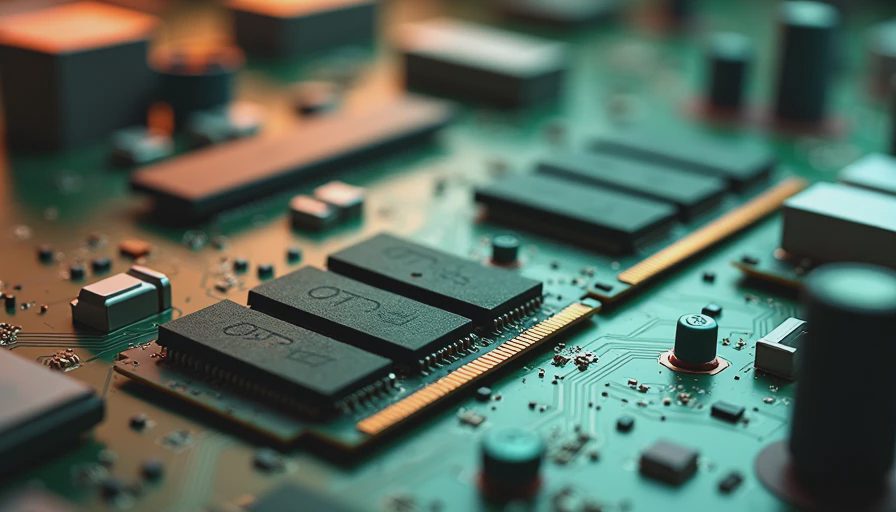
Turn off the computer, unplug the power cable, and touch the metal chassis before handling the modules. Line up the notch with the slot and press evenly until the retaining clips lock. Do not press on the chips or rock the module sideways. If the board manual recommends slots A2 and B2 for two modules, use those slots; that layout is common, but the manual wins.
The first boot after installing new ram sticks can take longer than usual while the motherboard trains the memory. Give it a little time before assuming something is wrong. If there is no display, shut down and reseat the modules. Check that both latches are fully closed and confirm that the motherboard power connectors are attached.
Once Windows loads, verify the installed capacity in Task Manager or the system information panel. Then run a memory test such as Windows Memory Diagnostic or MemTest86. Let the test complete rather than stopping after a few minutes. A failed test means you should investigate seating, firmware settings, and module compatibility before blaming the processor or graphics card.
What I Would Buy for Common Builds
For a homework and office desktop, I would choose a reputable 2x8GB DDR4 kit if the platform is older, or a 2x16GB DDR5 kit for a new system. Brands such as Crucial, Kingston, G.Skill, and Corsair offer widely available options, but the exact model matters less than matching the motherboard requirements and buying from a retailer with a clear return policy.
For a first gaming PC, 32GB is the comfortable target. A 2x16GB kit leaves room for a game, browser windows, voice chat, and background applications without constant memory pressure. For a workstation handling 4K video, large photo catalogs, or several virtual machines, 64GB is more appropriate, usually as two 32GB ram sticks.
You do not need RGB lighting, oversized heat spreaders, or an extreme speed rating to get a reliable system. Those features can be fine if you like the appearance, but they do not replace compatibility testing. Spend the saved money on a better power supply, a larger SSD, or a case with sensible airflow.
The reliable buying process is simple: identify the motherboard, confirm DDR4 or DDR5, choose the capacity for the workload, buy a matched kit, install it in the recommended slots, and test it afterward. That approach has served my home builds and client systems better than chasing the newest specification. Build it once. Build it right.