
If you are choosing a pc case for a family desktop, home office, or first gaming rig, start with reliability rather than glass panels and rainbow lighting. The enclosure affects cooling, noise, upgrade space, dust buildup, and how frustrating the build will be on Saturday afternoon. After years working on Dell OptiPlex and PowerEdge systems, I learned that a plain, well-designed box usually outlasts a flashy one with poor airflow.
A good case should fit the parts you actually plan to install, provide a clear path for air, and leave enough room to work without scraping your knuckles. You do not need to spend $200. In most home builds, the sensible range is about $70 to $130, with several dependable options below that price.
Start With the Parts, Not the Appearance
The first job of any pc case is compatibility. Check the motherboard size before shopping. ATX is the common full-size format, Micro-ATX is smaller, and Mini-ITX is compact. A mid-tower case often supports all three, making it the safest choice for a general-purpose family computer. A compact case can look efficient on a product page but become difficult when you add a large graphics card, extra storage, or a tall CPU cooler.
Measure the graphics card length listed by its manufacturer, then compare it with the case's maximum GPU clearance. Do the same for the CPU cooler height. If you might install a 12-inch or longer graphics card later, leave extra space rather than buying a case that fits today by only a few millimeters.
Power supplies deserve attention too. Most standard ATX power supplies fit a mid-tower, but cable space behind the motherboard tray varies. A case with 20 to 25 millimeters of rear cable clearance is much easier to close neatly than one that forces thick power cables against the side panel.
Airflow Matters More Than RGB
For a quiet, dependable pc case, look for a ventilated front panel, a rear exhaust fan position, and room for at least two front intake fans. Airflow is simply the movement of cool air into the case and warm air out. It keeps the processor and graphics card from constantly running hot, which also reduces fan noise during homework, video calls, and gaming.
The Fractal Design Pop Air, Corsair 4000D Airflow, and be quiet! Pure Base 500DX are examples of cases built around practical ventilation. They are not identical, but each gives a builder sensible fan placement and usable interior space. The exact model matters less than the design: open intake, filtered vents, and a clear exhaust route.
Avoid a solid glass front with narrow side slots if the computer will sit under a desk or in a warm room. It can look clean in a showroom and behave like a blanket over the hardware. A mesh panel may collect more visible dust, but it allows the fans to do their job at lower speeds.
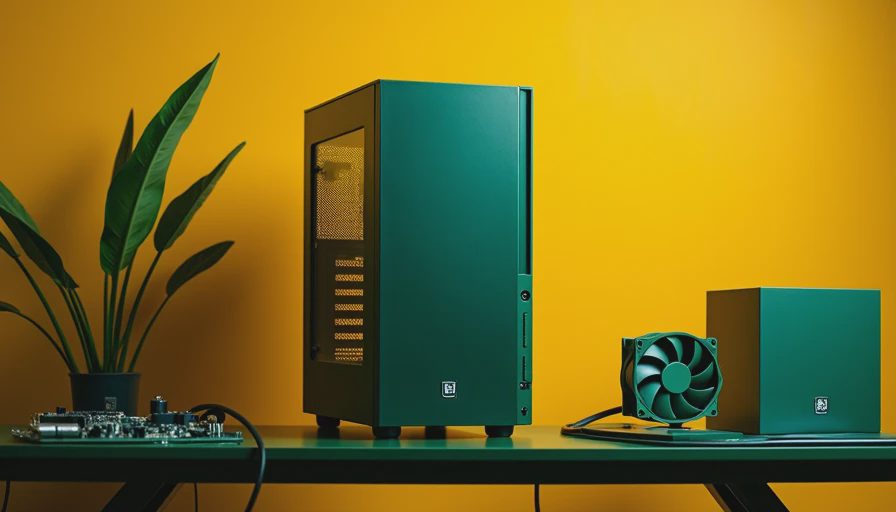
Choose a Size You Can Live With
A full-tower pc case is rarely necessary for a normal home computer. It makes sense for multiple graphics cards, extensive liquid cooling, or many hard drives, but it also consumes floor space and costs more to move. For most families, a mid-tower is the practical middle ground. It fits common components without turning the desk area into a server room.
Micro-ATX cases deserve a closer look if the build uses one graphics card, two memory modules, and one or two storage drives. They can save several inches of height and often cost $60 to $100. The tradeoff is tighter cable routing and fewer expansion slots. That is fine when you know the computer will not become a specialized workstation later.
If this is your first build, I would choose a conventional mid-tower unless desk space is genuinely limited. The extra room pays for itself when you need to replace a fan, install another SSD, or troubleshoot a cable that slipped loose.
Dust Filters and Maintenance Are Reliability Features
A pc case does not stay cool if its filters are clogged. Look for removable filters on the front, top, and power supply intake. Magnetic filters are convenient, while slide-out bottom filters are especially helpful because the power supply pulls air from near the floor.
Once every few months, shut down the computer, unplug it, and move it to a ventilated area. Hold fans in place while using short bursts of compressed air so they do not spin wildly. Wipe the filters separately and let them dry before reinstalling them. Do not use a household vacuum directly on exposed components; static and accidental contact are unnecessary risks.
Placement matters as much as the filter design. Leave several inches behind the rear exhaust and avoid pushing the front panel against a cabinet wall. A computer sitting on carpet should have a clear, elevated intake if possible. These small habits cost nothing and can prevent hotter operation over the life of the machine.
Make the Build Easy to Service
The best pc case is not merely the one with the lowest temperature on a review chart. It is the one you can open six months later without losing patience. Look for thumbscrews, a removable side panel, clear motherboard standoffs, and cutouts near the CPU socket. These details make upgrades and repairs faster.
A hinged glass panel can be convenient, but it is not essential. Tempered glass also adds weight and can break if it lands on a hard floor. A steel side panel is less exciting and usually more forgiving in a busy family room. I have replaced enough cracked panels to treat glass as an aesthetic choice, not a performance feature.
Front USB ports should match your routine. Two USB-A ports may be enough for a keyboard and printer, while a front USB-C port helps with newer phones and portable drives. Check whether the motherboard includes the internal connector required for that port before paying extra for it.

Sensible Case Choices by Budget
Around $60 to $80, focus on basic airflow and component clearance. Models such as the Cooler Master Q300L V2 or Montech Air 100 can make sense for a modest Micro-ATX build, provided the selected version has the ports and fan support you need. At this price, inspect the included fans and expect to add one rear exhaust fan if the layout calls for it.
Around $80 to $130, the Corsair 4000D Airflow, Fractal Design Pop Air, and Phanteks Eclipse G360A offer a more comfortable building experience. You typically get better cable routing, more usable fan positions, and sturdier panels. This is the range I prefer for a family desktop that should remain easy to upgrade.
Above $130, spend the money only if you need a specific feature such as unusually quiet panels, compact dimensions, extensive radiator support, or a premium front I/O layout. More expensive does not automatically mean cooler or more reliable. A $90 case with open airflow can beat a $180 case with a restricted front.
My Final Check Before You Buy
Before ordering, confirm six things: motherboard support, graphics card clearance, CPU cooler height, power supply length, included fans, and dust-filter access. Then read a few owner comments specifically about panel fit, fan noise, and cable space rather than chasing glowing photos.
If you are building a PC your kids will use for school and games, spend the saved RGB budget on a better power supply or a larger solid-state drive. If you are building a home office computer, prioritize quiet fans and front USB access. If you are building a first gaming rig, choose airflow and upgrade room before decorative features.
A reliable enclosure will not increase your frame rate, but it can make every other component easier to cool, install, clean, and replace. Choose the boring option when it is the better-engineered option. Build it once. Build it right.