
If you are buying or building a desktop for homework, remote work, photo storage, or gaming, understanding what is a motherboard will save you from expensive mismatched parts. I think of it as the PC's foundation and wiring harness in one. It does not usually make the biggest performance difference by itself, but every major component depends on it being compatible, stable, and well designed. Build the foundation correctly, and the rest of the computer has a much better chance of still working five years from now.
The motherboard in plain English
A motherboard is the large circuit board inside a desktop computer. It provides the physical sockets, electrical pathways, firmware, and connectors that allow the processor, memory, storage drives, graphics card, power supply, and accessories to work together. Instead of plugging each part directly into every other part, the motherboard gives the system a central place to communicate.
That makes what is a motherboard easier to picture: it is less like an engine and more like the frame, road network, and control panel of a vehicle. The processor performs calculations, the memory holds information temporarily, and the storage drive keeps files when the computer is turned off. The motherboard gives those parts a common route for exchanging data.
Most boards also include audio hardware, wired networking, USB ports, fan headers, and video outputs. Some include Wi-Fi and Bluetooth. A basic family desktop might use nearly everything built in, while a gaming machine may add a separate graphics card and more storage. The board does not need to be the most expensive part. It needs to support the parts you actually plan to install.
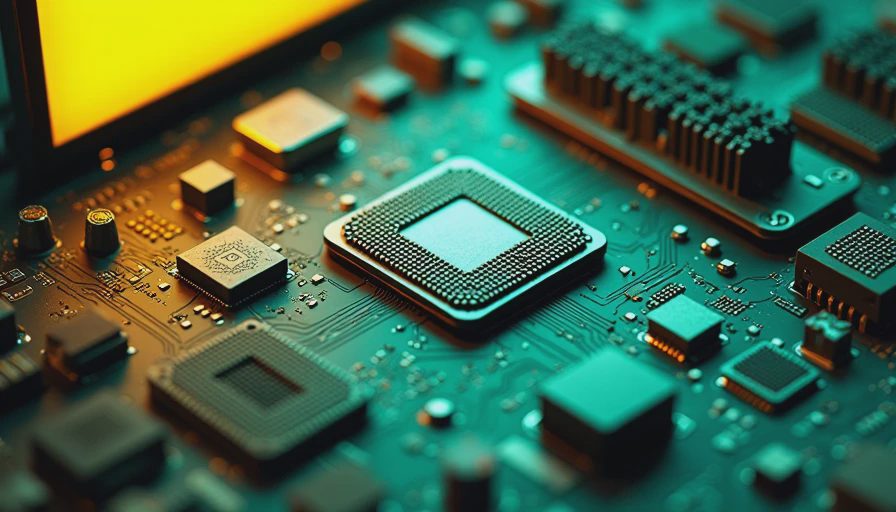
What is a motherboard responsible for?
The processor socket is one of the first things I check. A board designed for an AMD Ryzen processor will not accept an Intel Core chip, and even processors from the same company can require different sockets. The chipset, which is the board's support controller, also affects features such as USB connections, storage support, overclocking options, and the number of available expansion lanes.
Memory compatibility matters just as much. Current desktop boards commonly use DDR4 or DDR5 memory, and those standards are not interchangeable. A DDR5 module cannot be installed in a DDR4 slot. The board's specifications also identify the maximum practical memory capacity and supported speeds. For a family computer, two 16GB modules are often a sensible starting point; for a basic office system, 16GB total can be enough.
Power delivery is another part people overlook. The voltage regulator modules, usually called VRMs, convert power from the supply into the steady voltage the processor needs. A modest processor does not require a premium board, but a high-power chip deserves a board with stronger cooling around the VRMs. That is reliability thinking, not benchmark-chasing. A board that runs cool and stable is more useful than one covered in decorative lighting.
Size, slots, and connections that matter
Motherboards come in several standard sizes. ATX is the familiar full-size option with room for multiple expansion cards and storage connections. MicroATX is shorter and often a strong value for a home desktop. Mini-ITX is compact, but the smaller footprint usually means fewer memory slots, expansion slots, and connectors. Your case must support the board size, so choose the case and motherboard as a pair rather than assuming every part fits every enclosure.
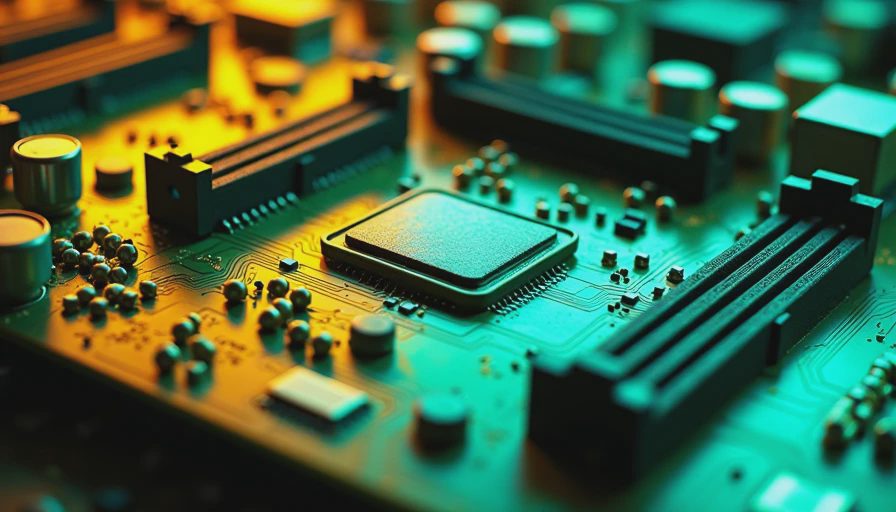
Expansion slots are used for graphics cards, capture cards, sound cards, and other add-ons. Most modern systems use an M.2 slot for a compact NVMe solid-state drive. SATA ports remain useful for larger, affordable SSDs and hard drives. Before buying, count the drives you expect to use and check whether installing an M.2 drive disables any SATA ports on that particular model. Manufacturers sometimes share those connections internally.
Rear-panel connections deserve the same attention. If the computer will sit under a desk, four USB ports can feel limiting quickly. Look for the ports your household will actually use: USB-A for older accessories, USB-C for newer devices, Ethernet for dependable networking, and audio jacks for speakers or a headset. Wi-Fi built into the board can be convenient, but wired Ethernet is still the cleaner choice for a desktop near the router.
How to choose one without overspending
Start with the use case. If you are building a PC your kids will use for homework, web browsing, and light creative work, a reliable microATX board in the $100 to $160 range is usually more sensible than a $300 enthusiast model. If you are building a gaming system, put the budget toward the graphics card after selecting a board with the right processor socket, memory type, cooling support, and storage connections.
Brands such as ASUS, MSI, Gigabyte, and ASRock sell boards across several price tiers. I do not choose by logo alone. I look for a clear rear-panel layout, a BIOS update method, a reasonable warranty process, a reinforced primary graphics slot, and heatsinks over the power circuitry. Reviews are useful when they discuss temperatures, firmware behavior, and long-term usability instead of only advertising lighting effects.
A $120 board with two memory slots can be perfectly fine for a simple office PC. A $170 board with four slots may be worth the difference if you expect to increase memory later. That is the sort of upgrade path that saves money: not buying every feature today, but avoiding a complete rebuild when your needs change.
Common motherboard mistakes
The most common error is buying the processor first and treating the motherboard as an afterthought. A processor may physically fit while still requiring a BIOS version the board does not have installed. When comparing parts, confirm CPU support and whether the board can update its firmware without a compatible processor. That small feature can turn a frustrating first boot into a ten-minute setup.
Another mistake is assuming more slots automatically means better quality. Four memory slots do not tell you how well the board handles a demanding processor. Likewise, a long feature list does not guarantee useful cooling or dependable firmware. Check the layout, connector locations, power delivery reviews, and the return policy before ordering.
Finally, do not forget the operating environment. A compact case with poor airflow can make a good board run warmer than expected. Install the motherboard on the correct standoffs, keep cables away from fans, and connect the CPU power cable before closing the case. Slow, careful assembly prevents many problems that look like defective hardware.
A dependable buying plan
When someone asks what is a motherboard, I explain the part first, then ask what the computer needs to do. That order matters. Choose the processor for the workload, select a compatible board with enough memory and storage capacity, then select a case and power supply that support the whole system. Do not let a dramatic product name push you into features your family will never use.
For a first build, I would rather see a reputable $130 board, 32GB of compatible memory, a quality power supply, and a properly installed SSD than a $250 board paired with a weak supply and cramped case. The former is balanced and easier to maintain. The latter looks impressive on a parts list but creates more opportunities for noise, heat, and troubleshooting.
The short answer to what is a motherboard is simple: it is the computer's central platform, connecting the parts and determining what can work together. Pick it around your real workload, confirm every compatibility detail, and leave room for one or two sensible upgrades. Build it once. Build it right.